

Import components
The experiences import command is the recommended way to run the component import pipeline. It guides you through extraction, scope review, credentials, generation, final review, and push in a single session.
If you need to re-run a specific stage or integrate steps into a custom pipeline, see Run the pipeline step by step. For the full flag reference, see Command reference.
This guide covers an atomic import, which imports components as a flat list and is the default. When your components embed other components and you want that nesting preserved, run experiences import --composite, and the scope gate and final review then group components by their hierarchy. See Coded components.
Import with the interactive TUI
Run the full pipeline interactively:
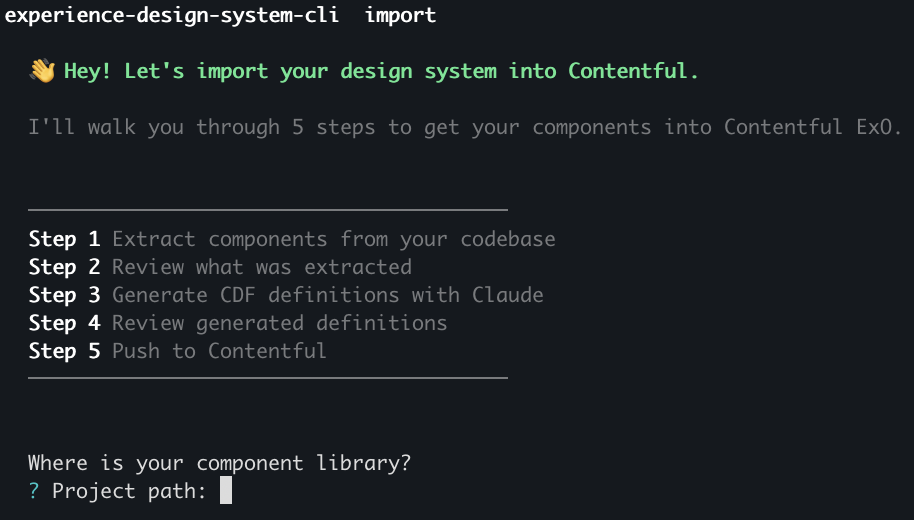
The wizard prompts you for your project path, uses your configured coding agent (defaults to Claude), and walks you through the following steps:
- Welcome / run picker — When you have prior runs recorded, the wizard opens on a picker so you can push or modify one of them. Skipped in non-interactive shells and when a routing flag is passed. See Run history and replay.
- Project path — Prompts for the project root (pre-filled by
--project). - Extract — Scans your local source files (
.tsx,.ts,.jsx,.js,.vue,.astro) to extract component metadata. - AI auto-filter — If credentials are already loaded and auto-filter is enabled, an AI agent runs in the background to recommend which components to include. The result seeds the scope gate.
- Scope gate — Review which components to import. See Scope gate below.
- Credentials — Collected before generation and pre-filled from
experiences setup. Generation prefetches in parallel with credential entry so the two steps overlap. Skip credentials to run in save-only mode — see Skip credentials for a save-only flow. - Generate — The AI agent generates a CDF definition for each accepted component.
- Final review — Inspect and edit the generated components before push. See Final review below.
- Save path — Prompts for a directory to save
components.jsonandtokens.json(or pass--out-dir). When files already exist at that path, the wizard shows a conflict gate that lets you overwrite them or save to a timestamped subdirectory instead. Skip the gate in headless mode with--on-conflict <overwrite|skip|fail>. - Push decision — Save-and-push is the default. Pushing prints a Contentful webapp URL to the components view.
- Done — The run is recorded to
~/.config/experiences/runs.json. See Run history and replay.
If you configured credentials via experiences setup, the wizard pre-fills your space ID, environment ID, and CMA token automatically. The values you saved via setup take precedence over CONTENTFUL_* / EDS_HOST environment variables — env vars only apply where the saved value is empty.
Caching behavior
Two of the AI-driven steps in the pipeline cache differently:
- AI auto-filter (step 4) — Cached per component. The decision for each component is keyed on a hash of the extractor’s output — component name, framework, prop names and types, slot names — so subsequent runs against the same source reuse prior decisions and skip the LLM. Cache entries are invalidated automatically when the source changes. Bypass the cache for a run with
--no-cache. - Generate (step 7) — Runs the LLM every time the session is fresh. Each
experiences importinvocation creates a fresh session, so generation re-runs against every accepted component even when the source is unchanged. To reuse a prior generation without re-running the agent, replay the recorded run withexperiences import --push-from-run <id>or re-open it for edits with--modify <id>(see Run history and replay).
Scope gate
The scope gate is a single review screen with two sections: AI-recommended exclusions (with the AI’s reasoning shown inline) and Components. The AI-recommended exclusions section appears at the top so you can review each of the AI’s exclusion decisions before accepting the rest of the components.
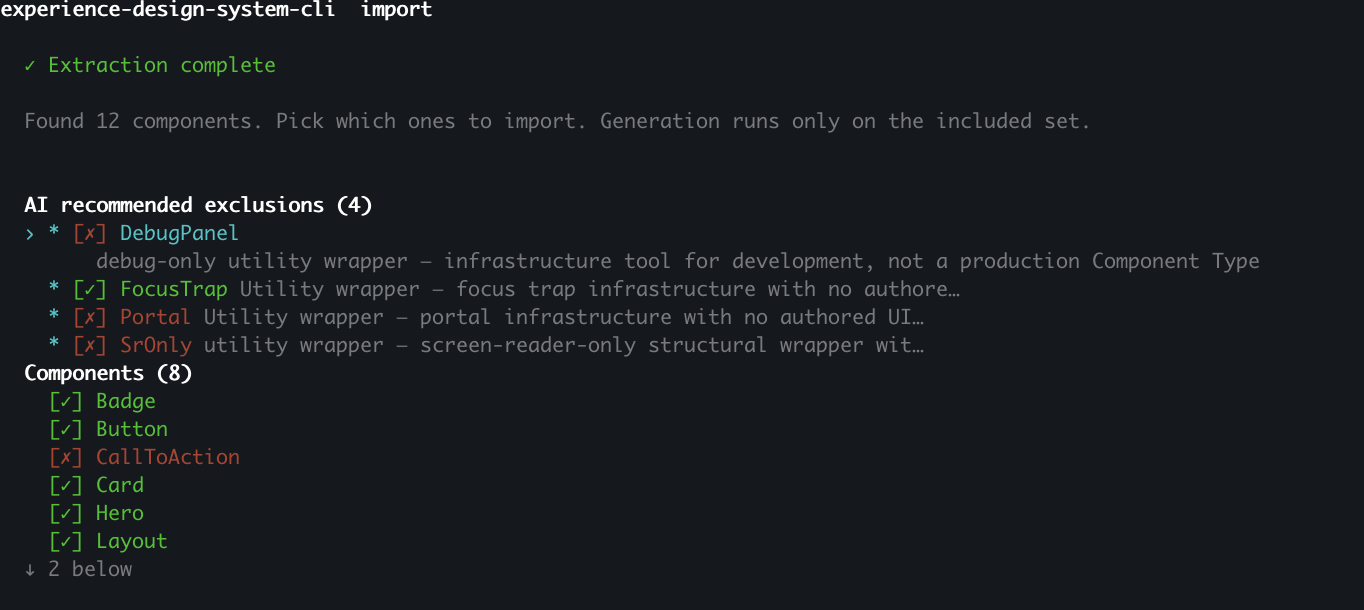
Features:
- Toggle any component’s include/exclude state, one at a time or across the whole list.
- Read the AI’s rationale for each recommendation without leaving the screen.
- Detailed component and slot rationale is available on the Final review step.
- If a batched AI response omitted a component’s decision, that component surfaces as failed in the AI-recommended-exclusions section and defaults to excluded — you can still include it manually.
Final review
The final review step lets you inspect each generated component — its properties, their types (string, richtext, media, enum, token), and the AI’s rationale — and edit before push.
![Final review screen for a Card component. The preview banner at the top summarizes 1 new, 7 changed, 1 removed, 0 breaking. A pop-up overlays the top of the screen showing the removed-components list (CallToAction) that opens when the operator presses [d]. Below, the left sidebar lists all generated components; the main panel shows the component-level rationale explaining why props and slots were kept or excluded.](https://fdr-prod-docs-files-public.s3.us-east-1.amazonaws.com/contentful.docs.buildwithfern.com/34894f4a7de8320da9aabd1470c2cad2cf00d4327e8142efe5d9f51903d48ada/docs/assets/images/experience-design-system-cli-final-review.png?X-Amz-Algorithm=AWS4-HMAC-SHA256&X-Amz-Content-Sha256=UNSIGNED-PAYLOAD&X-Amz-Credential=AKIA6KXJSKKNFOCF7G4B%2F20260915%2Fus-east-1%2Fs3%2Faws4_request&X-Amz-Date=20260915T042040Z&X-Amz-Expires=604800&X-Amz-Signature=c17a341481f959f9d22626ca069465c67fd747eb3598f81b7c19bc76d13340b5&X-Amz-SignedHeaders=host&x-amz-checksum-mode=ENABLED&x-id=GetObject)
Switch into the field editor to inspect and change the generated props and slots directly. Edits are saved to the session so they carry through to save and push.

Features:
- Agent rationale — View why the AI chose each property or slot, at both the component/slot level and the individual prop level.
- Original JSON — Toggle to the raw generated CDF JSON for a component to see the full generated definition.
- Source view — Open the extracted source-code snippet the AI used as input, so you can compare the generated definition against the original component.
- Edit fields — Change property names, descriptions, types, defaults, and allowed values directly in the field editor. Edits are saved back into the session so they carry through to save and push.
- Preview diff banner — A banner at the top of the screen reflects the aggregate diff between your generated manifest and the current state of your Contentful environment. Counts update as you edit fields.
- Removed-list overlay — Open a pop-up listing the components that will be deleted from Contentful on push — these are components that exist in your target space but are absent from the manifest you’re about to submit (for example, because you rejected them at the scope gate).
- Live preview — When credentials are configured, saving a change in the field editor re-runs the manifest preview against your Contentful environment and updates the diff banner inline. Disable with
--no-live-preview. Live preview is unavailable when you skipped credentials at step 6 — the field editor still edits fields, but you won’t see server-side diffs until you push.
Skip credentials for a save-only flow
You can skip the credentials step to run the wizard in save-only mode. The wizard writes components.json (and tokens.json when applicable) to disk, records the run as not pushed, and preserves the prefetched generation so you can push later with experiences import --push-from-run <id>.
Push decision and diff preview
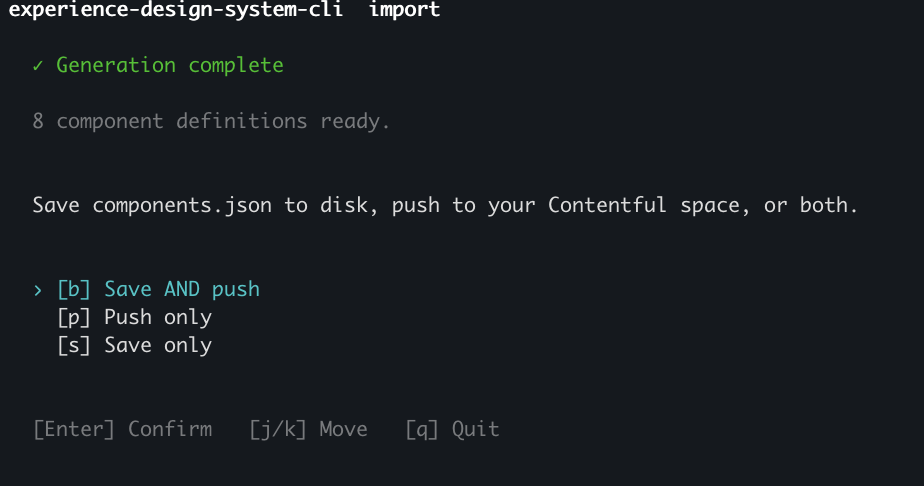
After the final review, the wizard prompts you to save components.json to disk, push to your Contentful space, or do both. Save-and-push is the default.
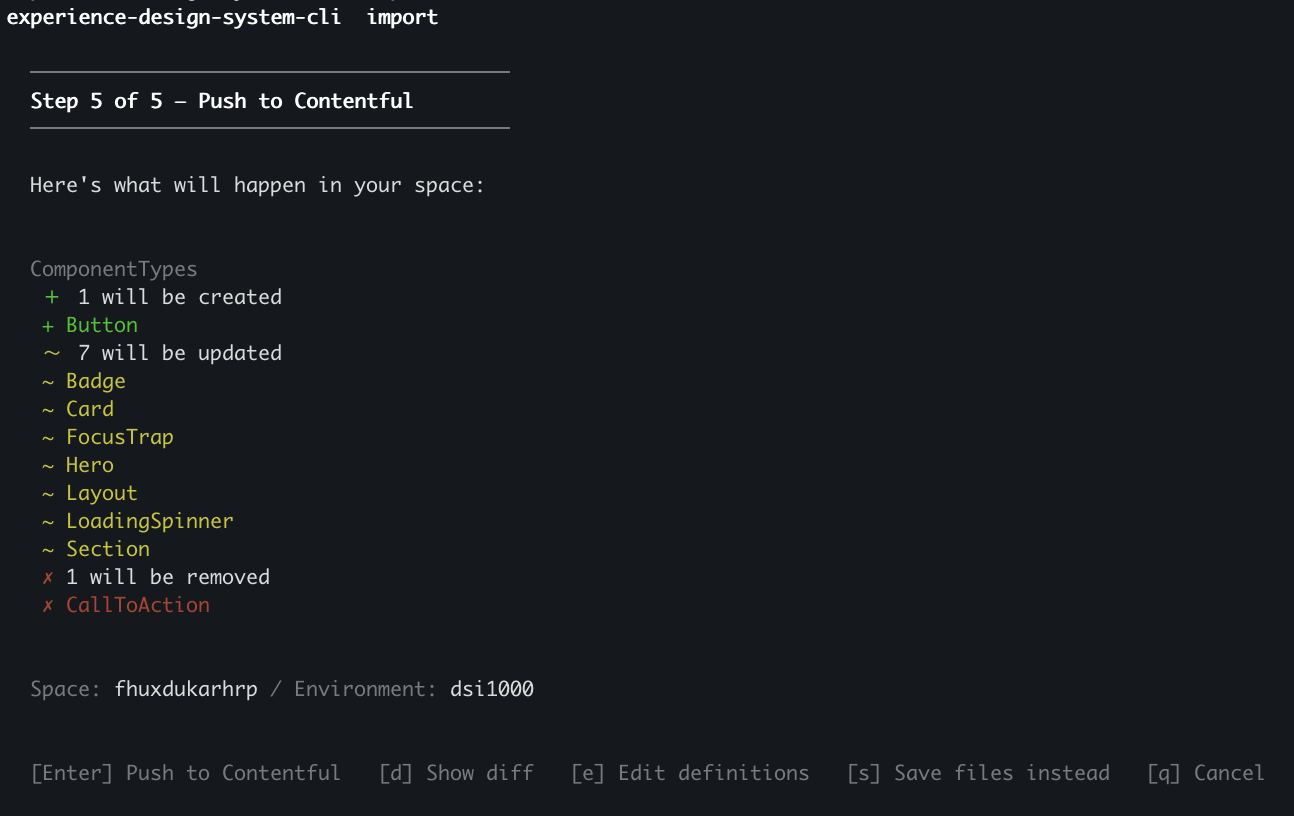
Before the push commits, the wizard shows a diff summary of what will be created, updated, and removed. You can expand the diff to review every field-level change before confirming.
Manifest deletion safety
Manifest preview and apply are non-destructive by default. Components and design tokens that exist in the target environment but are missing from the manifest are omitted from the diff, so no delete actions are emitted.
To include removals, pass --allow-deletions to experiences import, experiences apply select, or experiences apply push. This opt-in can produce delete actions for missing components and design tokens. Published entities are excluded from deletion, and components referenced by Fragments remain protected.
experiences apply preview is read-only and always uses the default behavior of skipping deletions. Preview and apply use the same removal gate when the deletion opt-in is enabled.
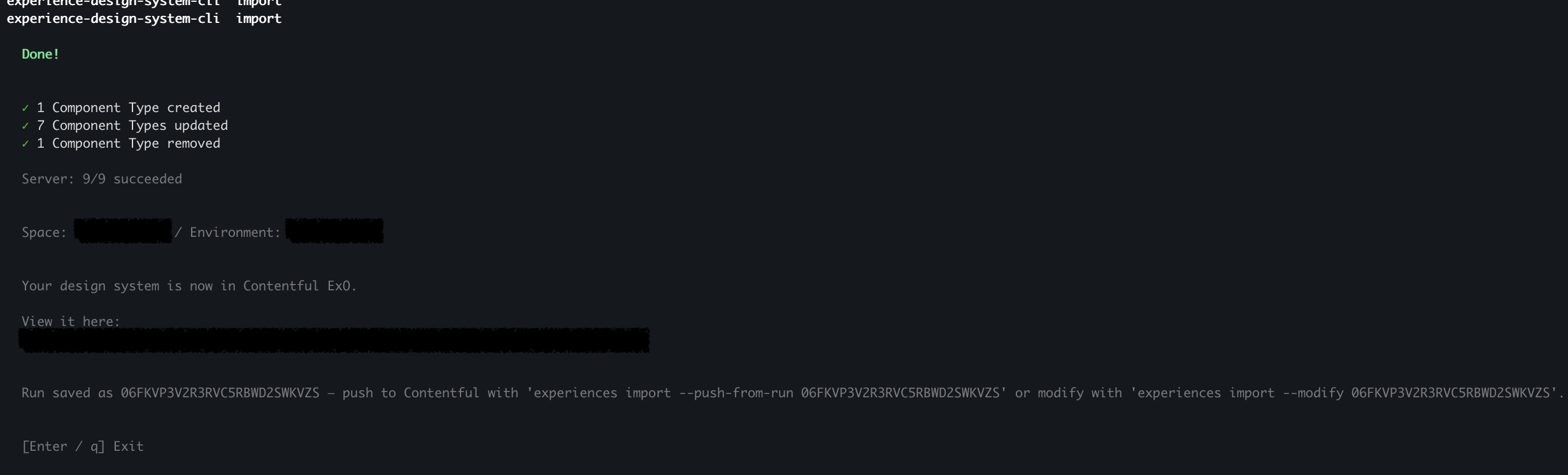
Once the push completes, the wizard prints a summary and a direct URL to the components view in the Contentful web app.
Run in headless mode
Pass --space-id, --yes, --auto-accept-scope, or other automation flags to run without interactive prompts. This is suited for CI pipelines:
In headless mode, the pipeline runs: analyze extract → analyze select-agent → generate components → apply push. No review gates or preview step are run.
Verify in Contentful
After pushing, follow the URL printed by apply push to jump directly to your imported components. To navigate there manually instead:
- Log in to the Contentful web app.
- Navigate to your space and environment.
- Go to Design system > Components to view the imported components.
Design tokens are surfaced on the components that reference them — open a component to see the tokens it uses on its design properties.
Next steps
- Import design tokens — Import colors, spacing, typography, and other design tokens alongside your components.
- Coded components — Preserve embedded-component hierarchies with composite mode.
- Run history and replay — List, push, or edit prior runs.
- Run the pipeline step by step — Run each stage as an individual command.
- Command reference — Full flag reference.
- Debug logging — Capture a trace of a run for troubleshooting.
- FAQ — Common questions and behaviors that surprise operators the first time through.